Benikids

Português · English

A computer for kids that balances learning and play

Benikids is a full-screen menu for children aged 5 to 10, on Windows and Linux. Kids only see what their parents approved, and it's light enough to bring that old laptop forgotten in a drawer back to life.

  • Free and open source
  • Windows 10 and 11
  • Linux Mint XFCE
  • App in Brazilian Portuguese
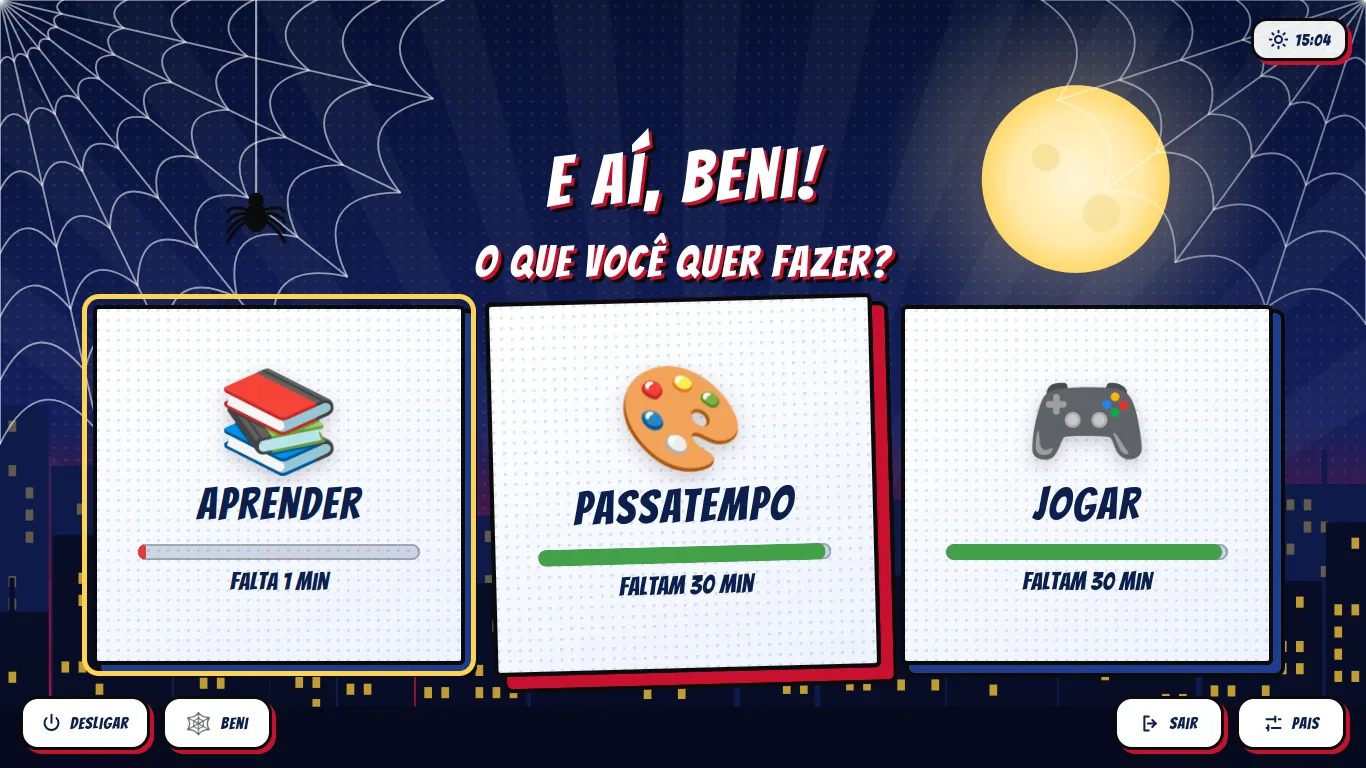
Benikids home screen with the spider hero theme: “E aí, Beni! O que você quer fazer?” (Hey Beni! What do you want to do?) and three cards, Learn, Hobbies and Play, each with a bar showing how much time is left today.

What's inside

Made for kids to use on their own, with rules parents set once.

  • Learn, Hobbies and Play

    The child picks what to do, and each card shows how much time is left today.

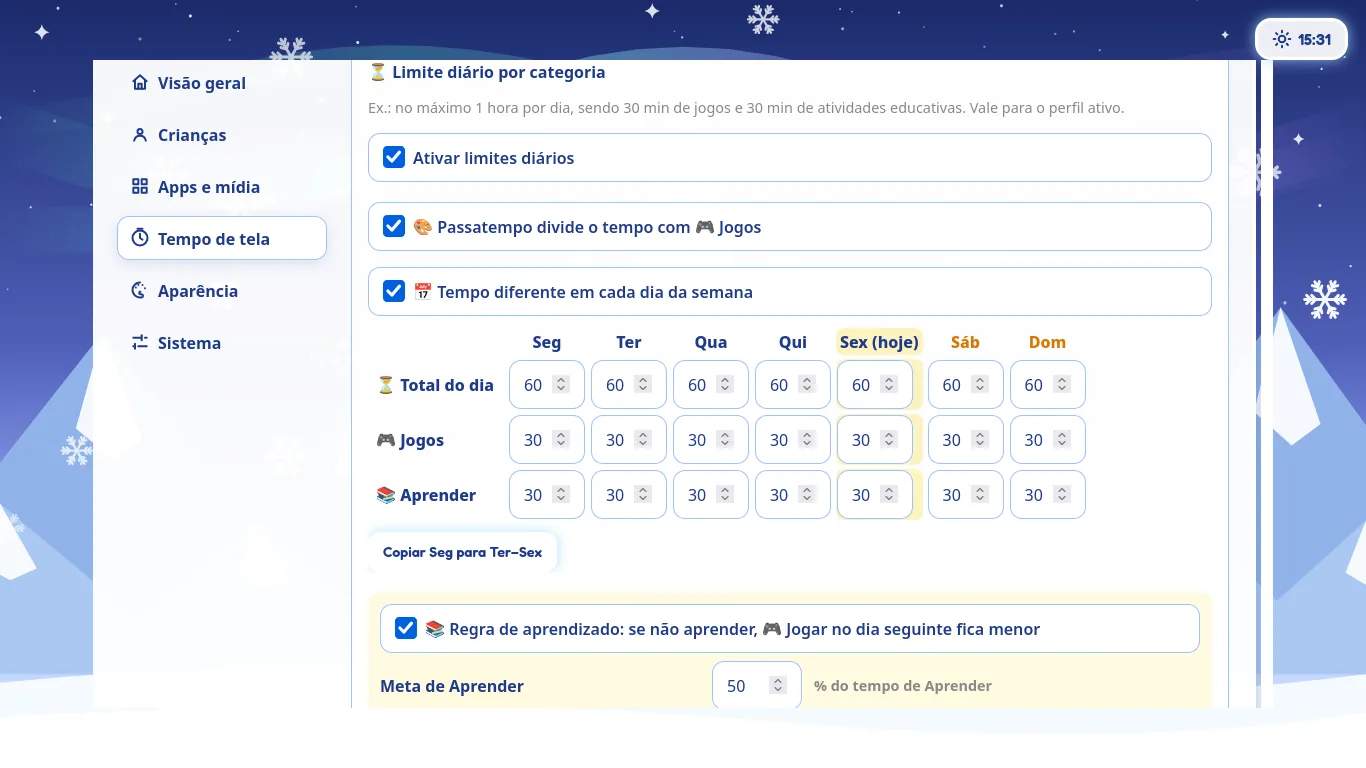
  • Screen time per category

    Different for each weekday if you like. In the last seconds a countdown warns the child, and Benikids closes the game itself when time runs out.

  • Learning first (optional)

    If yesterday's learning was missing, today's game time is shorter.

  • Hand-picked free games and programs

    GCompris, Tux Paint, SuperTux, SuperTuxKart, Luanti, Scratch, Stellarium, Klavaro and more. Everything starts turned on, and parents turn off what they don't want.

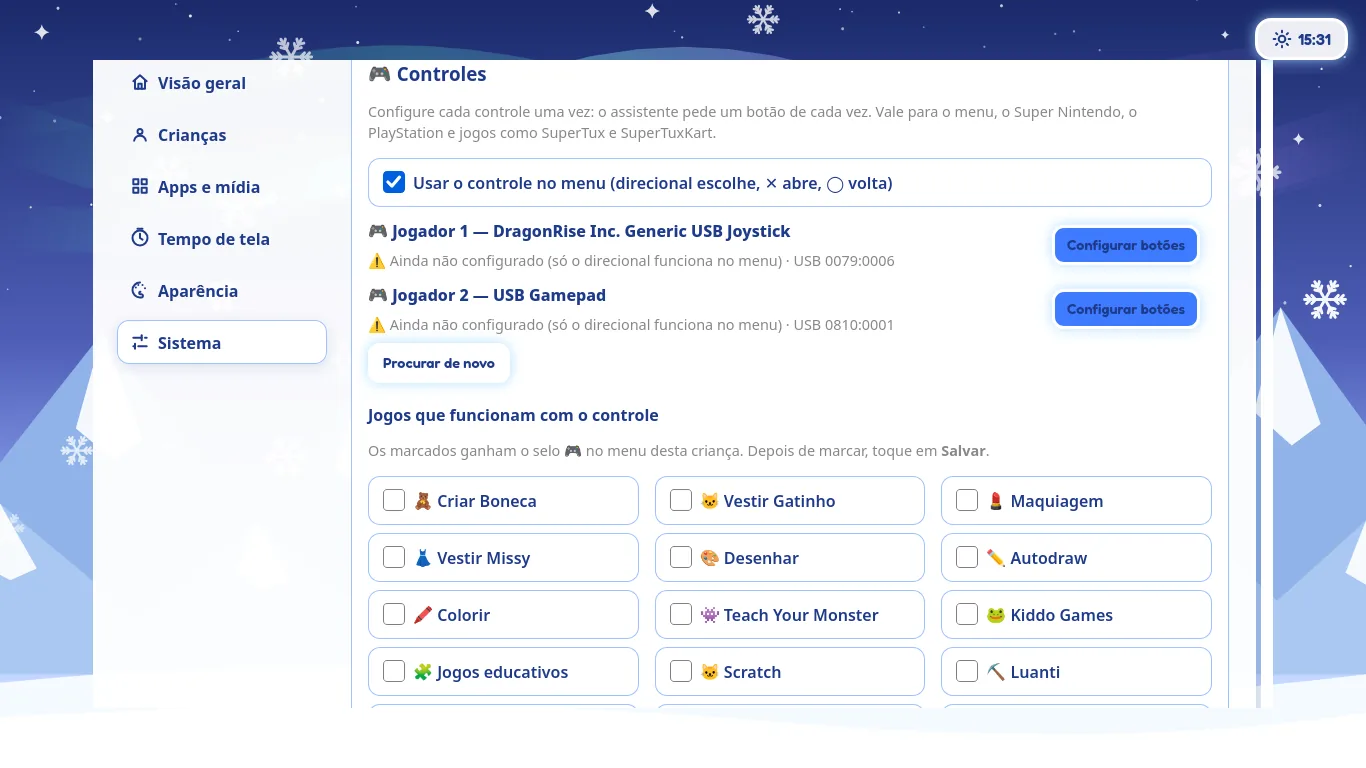
  • Generic USB gamepads

    Cheap unbranded ones included. A wizard sets them up button by button, and the same gamepad works in the menu and in games. Holding Start + Select closes the game and returns to the menu.

  • One profile per child

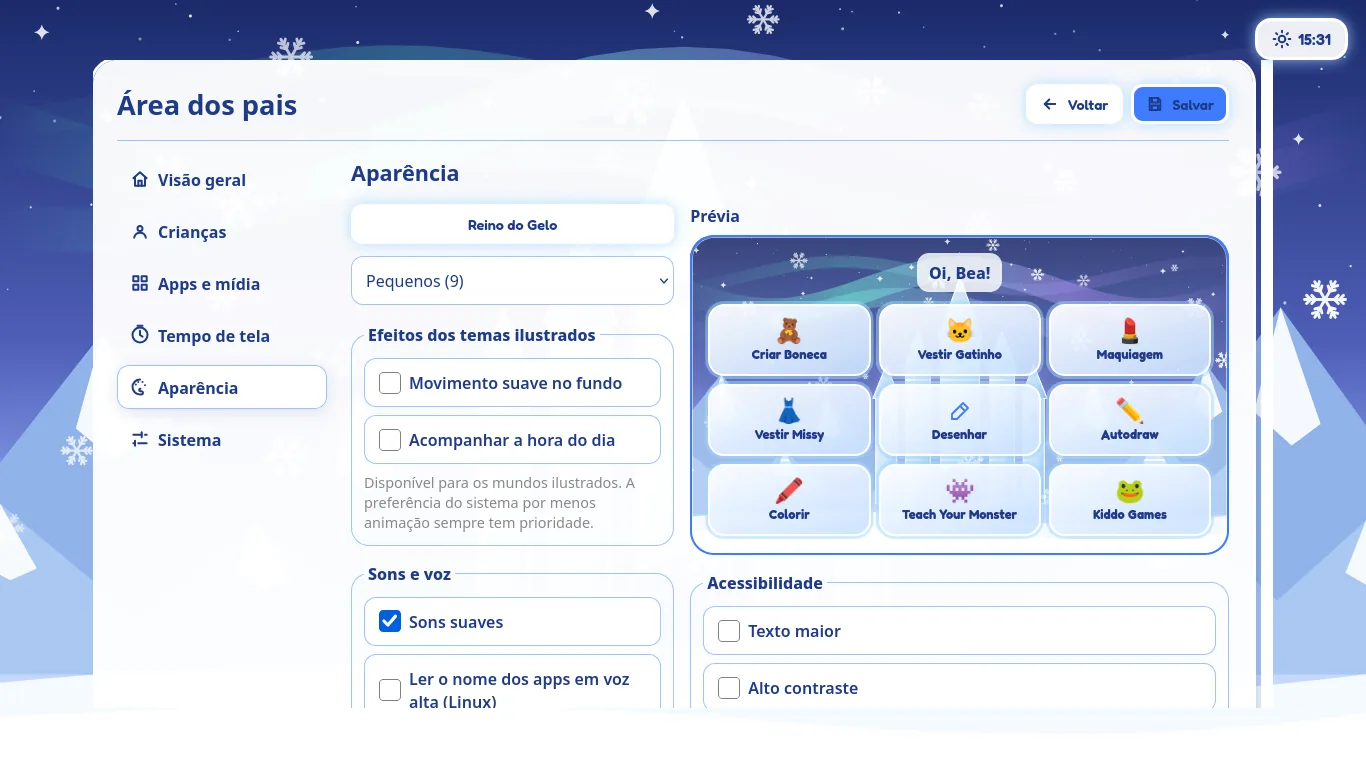
    With their own themes: Spider Hero, Building Blocks, Ninja Dojo, Ice Kingdom, Magic House and Enchanted Castle. The parents' area is protected by a PIN.

  • Light, even on old computers

    The menu is a native app drawn by the graphics card. On a 2011 laptop it opens in about 1 second and idles at ~1% CPU. The same menu in Firefox took ~600 MB and up to 29% of a core.

  • In Brazilian Portuguese

    The kids' screens and the parents' area are in Brazilian Portuguese.

On Linux, the whole computer becomes the kids' computer. It boots straight into the menu and adds:

  • internet filtering on any Wi‑Fi, with SafeSearch and restricted YouTube;
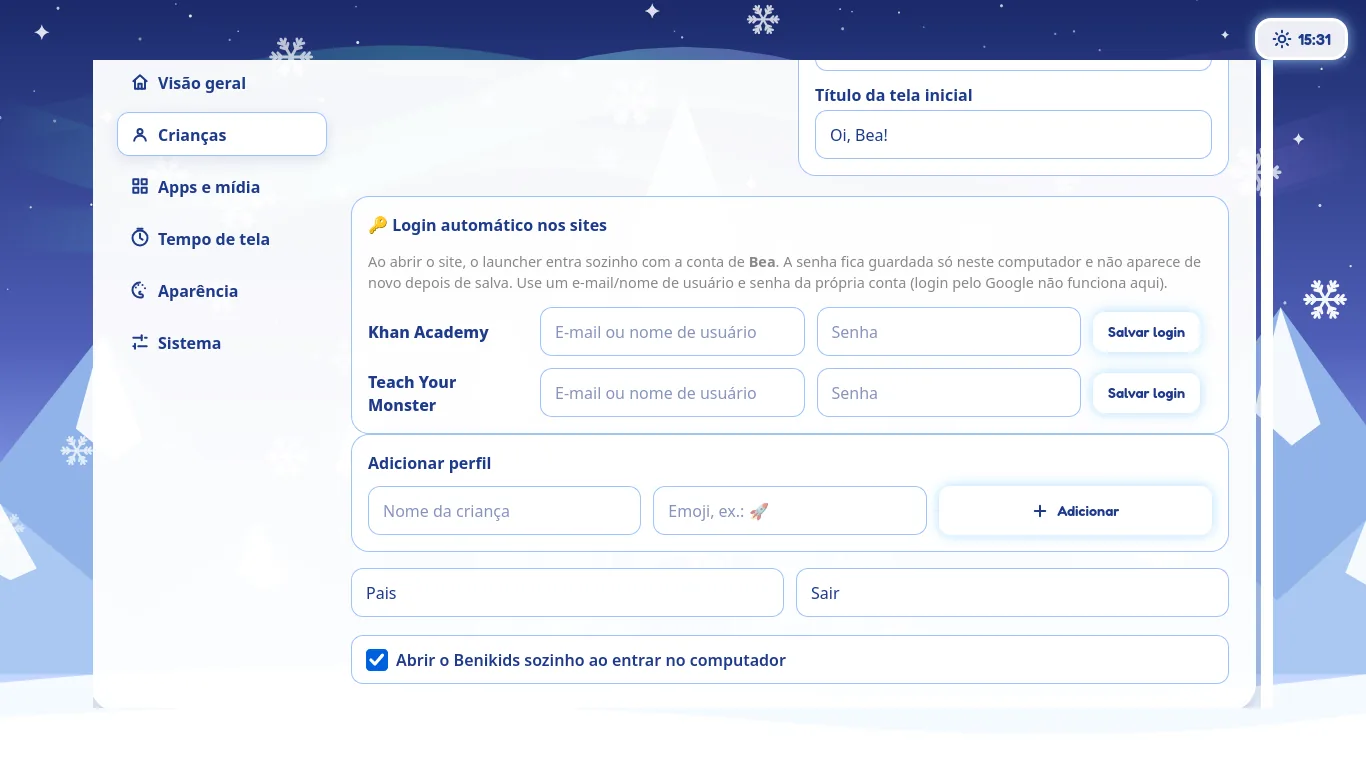
  • automatic login to Khan Academy and Teach Your Monster;
  • itch.io games;
  • Super Nintendo and PlayStation;
  • automatic updates.

For parents

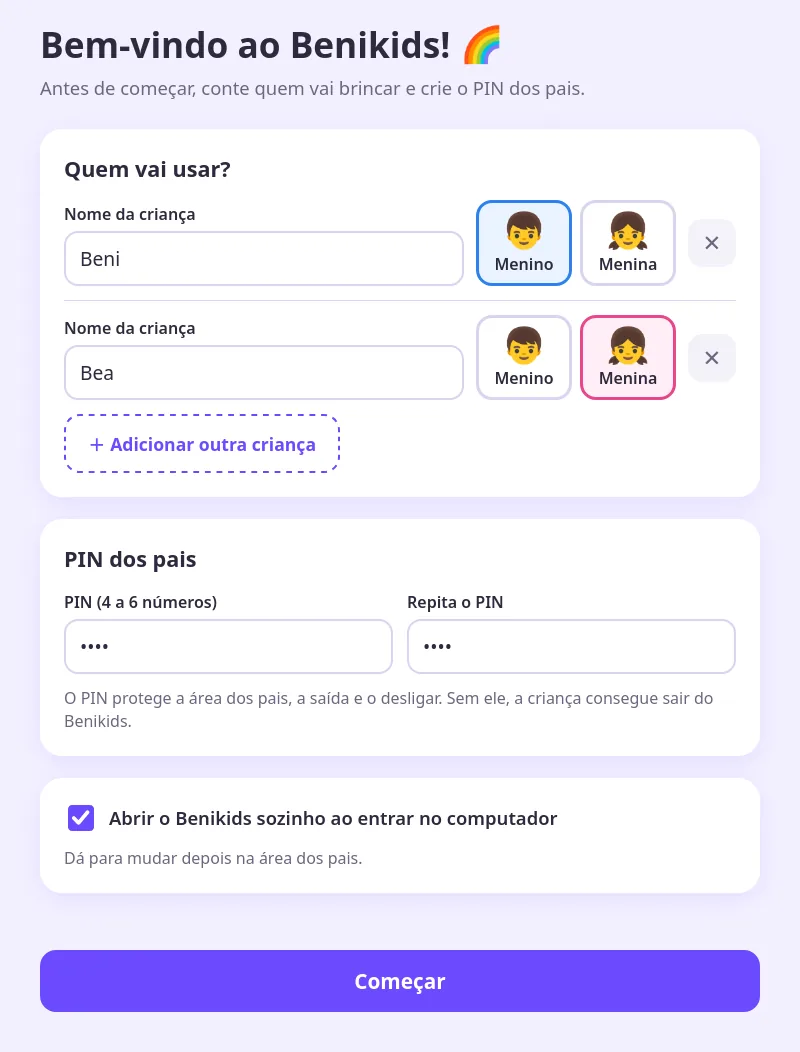
Everything parents set up lives in the parents' area, protected by a PIN only you know. (The screens are in Portuguese.)

Install

It's free. Pick the system on your child's computer.

🪟 Windows 10 and 11

  1. Sign in to the child's Windows account. It doesn't need administrator rights.
  2. Download Beni-Windows.zip, unzip it and double-click Instalar Benikids.cmd.
  3. Accept installing the games and programs. A few of them ask once for the password of an administrator of the computer.
  4. The first time it opens, enter each child's name and the parents' PIN.
⬇️ Download Beni-Windows.zip

From then on, Benikids opens by itself when the child signs in to Windows (you can turn this off in the parents' area). To update, download the package again and run the installer: settings and screen time are kept.

🐧 Linux (Mint XFCE)

  1. Install Linux Mint XFCE, create the child's user and turn on automatic login.
  2. In the child's account, open the Terminal and run:
    git clone https://github.com/jaison/benikids.git
    cd benikids
    ./instalar.sh
  3. Log out and back in: the menu opens by itself. In Pais → Sistema (Parents → System), create the parents' PIN.

From then on, the laptop updates itself.

Privacy

Benikids runs on the computer itself. It only sends anonymous data to help the project, and parents decide.

💻 About the computer

Once a day, Benikids sends an anonymous description of the machine (system, processor, memory, graphics card, screen resolution), so we know which computers it runs on and where to test. If something fails, it also sends a problem report, with user names and e‑mail addresses removed.

On by default, and you can turn it off in the first-run setup or in Pais → Sistema (Parents → System), where you can see exactly what is sent.

👧 About the children's use

Only if parents turn it on (it starts off). Then, for each child, it sends the minutes per app and per category for each day.

  • Never the child's name: only a random code.
  • Only the age band, worked out on the computer itself. The birth date never leaves it.
  • Whether it's a boy or a girl, and the minutes spent in each app per day.

🗑️ You're in control

The “Apagar os dados já enviados” (delete data already sent) button in Parents → System asks the server to delete everything that computer and its children sent.

The server doesn't store IP addresses. Usage is deleted after 12 months and problem reports after 6 months.

Why this project exists

I'm Jaison. I wanted to give new life to a 2011 laptop for my nephew Benício (Beni), and turn a machine that would sit unused into a computer he could use on his own, safely: a real keyboard and mouse, only programs and sites I had tested, filtered internet, time rules and no passwords to remember.

Along the way it gained a profile for my 5-year-old niece Bea, with games and themes for her, and later a Windows version. It's all here, for anyone who wants to do the same.